If you’ve ever run an e-commerce store, you’ll know the frustration of losing sales when a product goes out of stock. The standard PrestaShop behaviour is simple: no stock, no sale. But what if you could source products on demand? What if your supplier can get items to you within a few days, and your customers are happy to wait?
That’s exactly the problem I set out to solve with Order for Delivery – a custom PrestaShop 8 module that transforms how you handle out-of-stock products.
The Problem
E-commerce stores frequently encounter situations where products sell out but can be restocked within a few days. The default PrestaShop behaviour forces customers to either:
- Sign up for stock notifications and hope they remember to come back
- Go elsewhere and buy from a competitor
Neither option is ideal. I wanted a middle ground – let customers purchase the item now, with a clear expectation that it would be dispatched within a specified timeframe.
The Solution
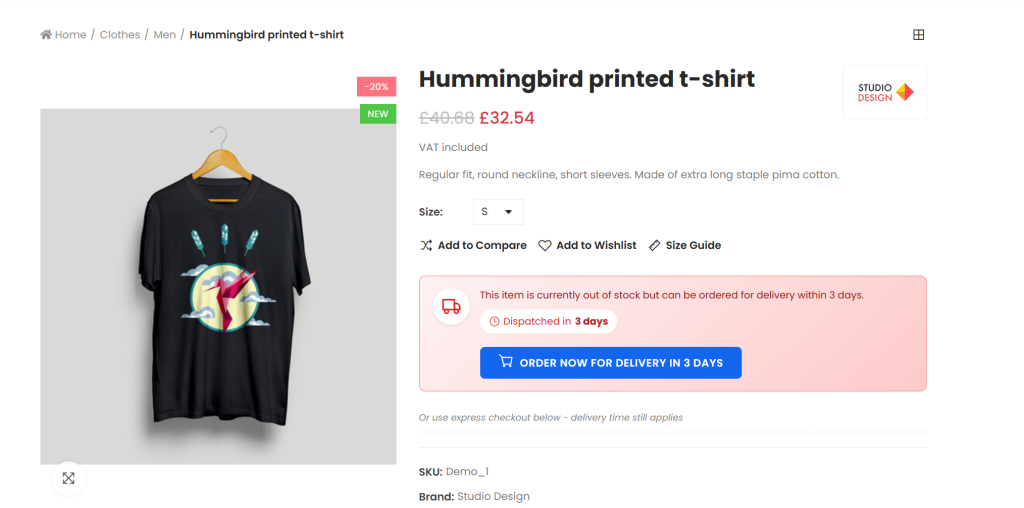
Order for Delivery (OFD) allows customers to purchase out-of-stock products with full transparency about delivery times. When a product is out of stock and OFD is enabled, customers see a prominent banner explaining the situation and a dedicated “Order for Delivery” button.
Here’s what makes it different from simply enabling “Allow orders when out of stock” in PrestaShop’s settings:
- Clear visual communication – Customers know exactly what they’re getting into
- Per-product configuration – Different delivery timeframes for different products
- Optional price adjustments – Charge extra for special orders if needed
- Dedicated admin management – Track OFD orders separately from regular orders
- Item-level status tracking – Monitor sourcing, receiving, and shipping for each item
- Automated email notifications – Keep customers informed when items ship
Key Features
1. Product-Level Control
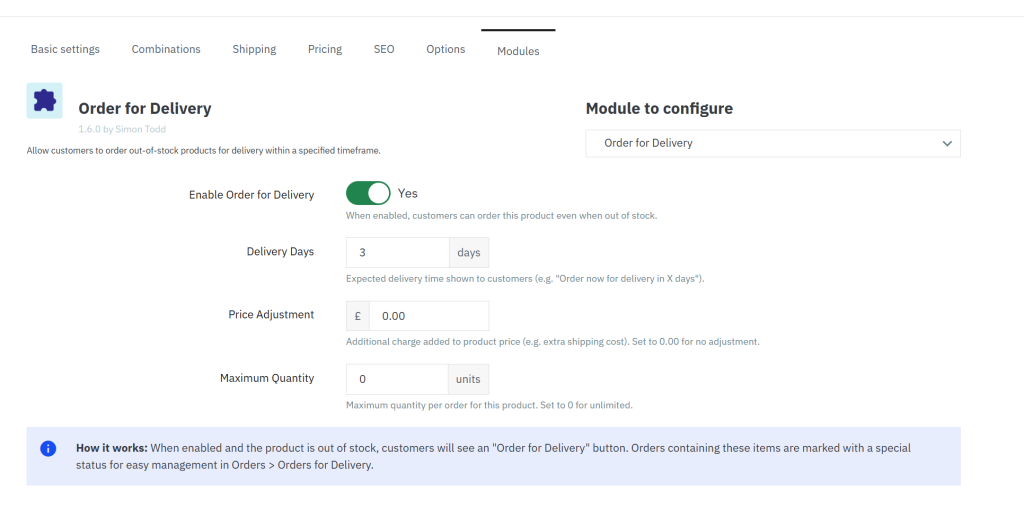
Each product can be individually configured with its own OFD settings. From the product edit page, you’ll find a dedicated “Order for Delivery Settings” panel in the Modules tab:
- Enable/Disable Toggle – Turn OFD on or off per product
- Delivery Days – Set the expected dispatch timeframe (shown to customers)
- Price Adjustment – Add an optional surcharge for special orders
- Maximum Quantity – Limit how many can be ordered at once
This granular control means you can enable OFD only for products where it makes sense – perhaps items your supplier can source quickly, whilst keeping it disabled for discontinued lines.
2. Customer-Facing Experience
When a customer visits an out-of-stock product with OFD enabled, they see:
The OFD Banner
A prominent red/amber gradient banner clearly indicates the product isn’t currently in stock. This includes:
- A delivery truck icon for instant visual recognition
- Customisable notice text explaining the situation
- The dispatch timeframe displayed prominently: “Dispatched in X days”
The Order Button
A dedicated “Order for Delivery” button replaces the standard add-to-cart controls. The button text is fully customisable and supports a {days} placeholder, so you could use:
- “Order now – delivery in {days} days”
- “Special order ({days} day dispatch)”
- “Not in stock? We’ll get it for you in {days} days”
Additional Information
Below the main banner, customers can see:
- Delivery time details
- Sourcing information
- Quantity limits (if configured)
- Any additional charges clearly displayed
The standard “Add to Cart” button and quantity selectors are hidden, replaced by the OFD interface. This prevents confusion and ensures customers understand they’re placing a special order.
3. Combination Product Support
OFD intelligently handles products with combinations (variants). When you enable OFD at the product level, it applies to all combinations. The module then:
- Shows the OFD banner only when the selected combination is out of stock
- Displays the normal add-to-cart button for in-stock combinations
- Automatically switches between the two as customers change their selection
For example, if you’re selling t-shirts and Size M is out of stock but Size L has stock:
- Customer selects Size M → OFD banner appears
- Customer switches to Size L → Normal add-to-cart returns
- Customer switches back to Size M → OFD banner reappears
This is handled via JavaScript listening to PrestaShop’s updatedProduct event, so the transition is seamless.
4. Express Checkout Compatibility
One thing I was keen to support was express checkout methods – Apple Pay, Google Pay, and similar. The OFD banner includes a subtle notice: “Or use express checkout below – delivery time still applies.”
This means customers using express payment methods still see the delivery timeframe information before completing their purchase.
5. Cart and Checkout Labels
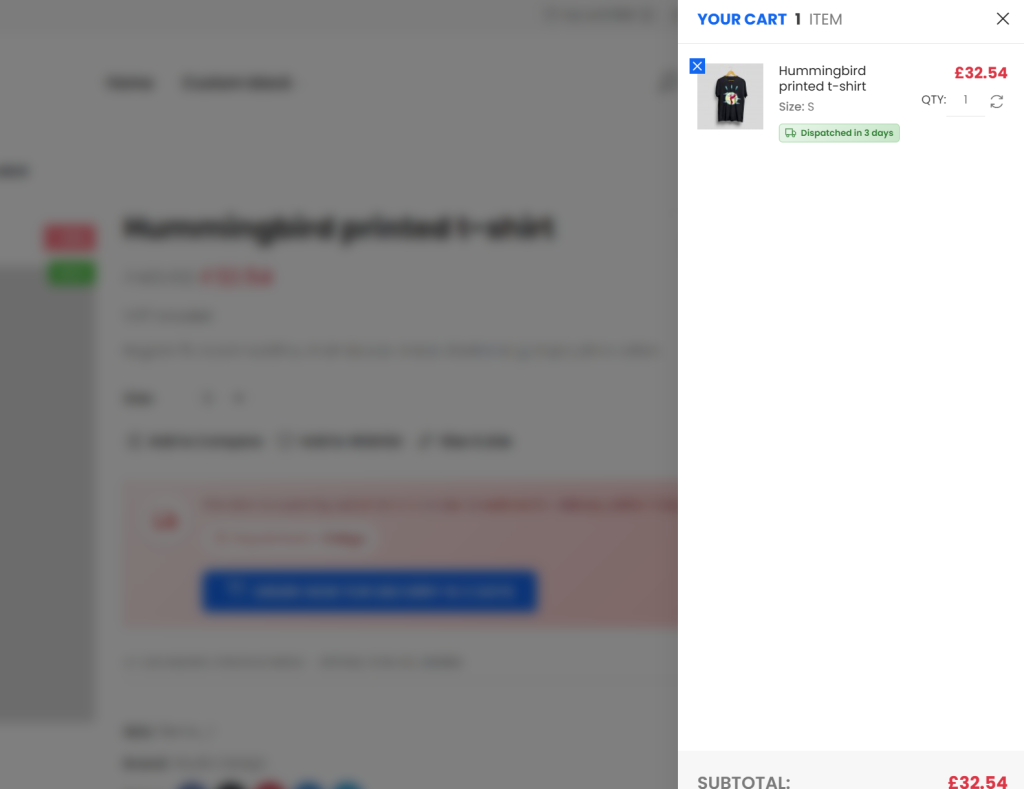
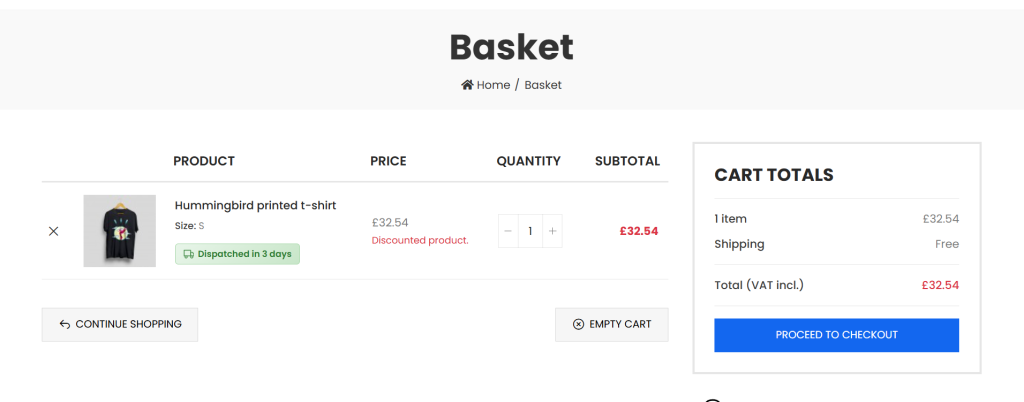
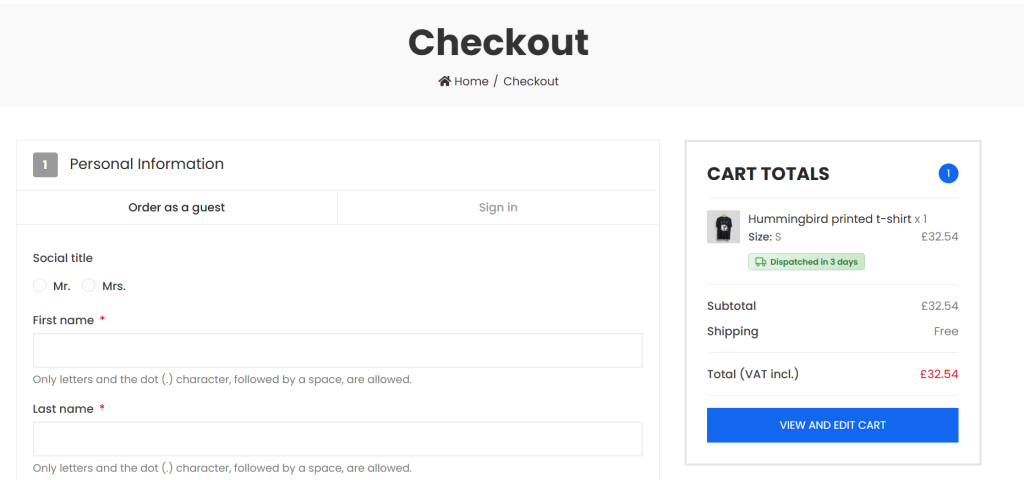
Once an OFD item is in the cart, customers see a clear “Order for Delivery” label next to the product throughout the checkout process:
- Slide-out/mini cart
- Full cart page
- Checkout page
- Order confirmation
This reinforces that the item has a different delivery expectation and prevents any confusion at the payment stage.
6. Order Confirmation Emails
OFD information is automatically appended to PrestaShop’s standard order confirmation emails. No template modifications required – the module hooks into the email system and adds a clearly formatted section showing:
- Which products are OFD items
- The expected dispatch timeframe for each
- Product variants (if applicable)
This works with both HTML and plain text email formats.
7. Dedicated Admin Order Management
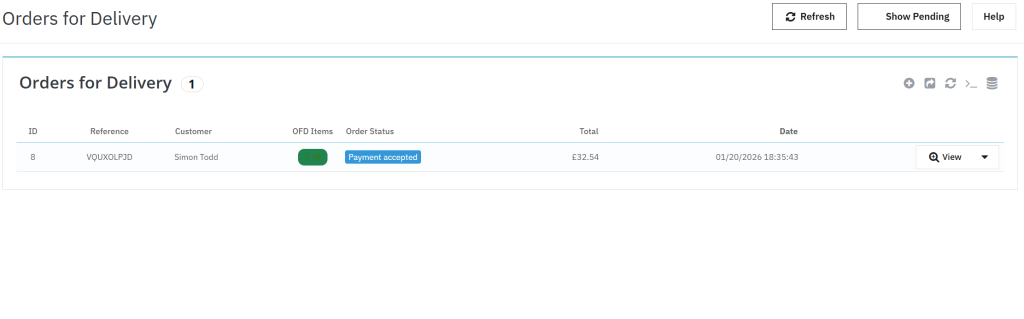
This is where OFD really shines. Rather than hunting through your regular orders list, OFD provides a dedicated admin section under Orders > Orders for Delivery.
The Order List
A clean, filterable list showing:
- Order reference and date
- Customer name
- Number of OFD items
- Current fulfilment status
- Quick-view actions
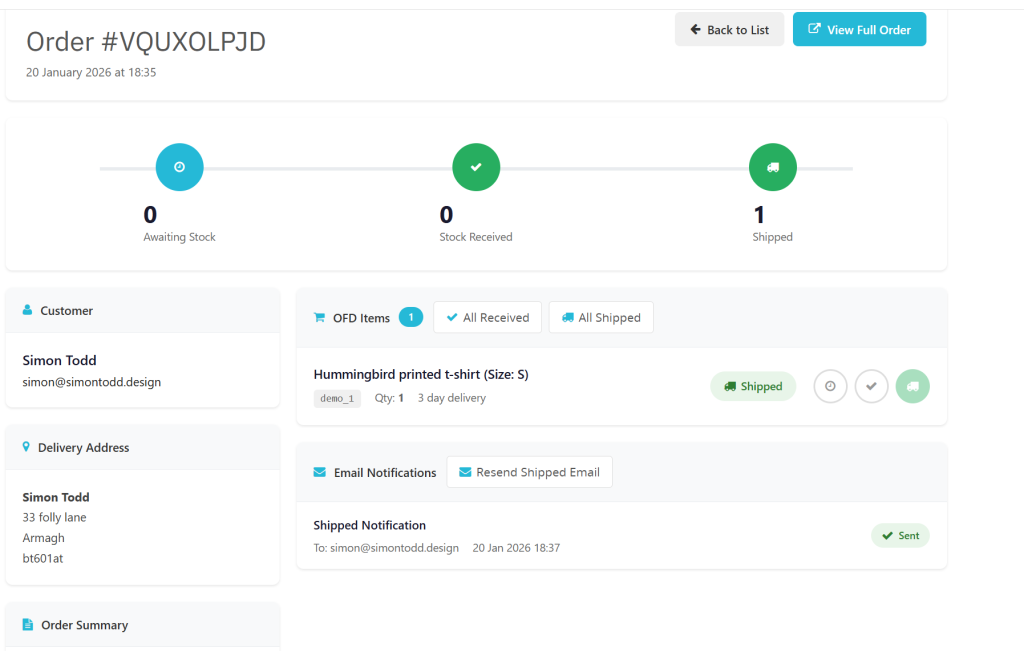
The Order Detail View
Click into any order and you get a purpose-built management interface:
Progress Tracker
A visual progress bar at the top shows how many items are at each stage:
- Awaiting Stock (amber)
- Stock Received (blue)
- Shipped (green)
Customer & Address Cards
Sidebar cards display customer details and delivery address at a glance, without needing to navigate to the main PrestaShop order.
Item-Level Status Management
Each OFD item in the order has its own status that can be updated independently:
- Awaiting Stock – Initial state when the order is placed
- Stock Received – You’ve received the item from your supplier
- Shipped – The item has been dispatched to the customer
Circular action buttons make it easy to update status with a single click. The interface uses AJAX, so changes are instant without page reloads.
Bulk Actions
Need to update all items at once? Bulk action buttons let you:
- Mark all as “Stock Received”
- Mark all as “Shipped”
8. Shipped Email Notifications
When all items in an OFD order are marked as shipped, you can send a notification email to the customer. The module includes:
- HTML and plain text email templates
- Automatic sending when using the “All Shipped” bulk action
- Manual send/resend button for individual orders
- Email log showing sent/failed status and timestamps
The email template is customisable and includes all relevant order details.
9. Custom Order Status
During installation, the module creates a dedicated order status: “Order for Delivery – Pending”. Orders containing OFD items automatically receive this status, making them easy to identify and filter in the main PrestaShop orders list.
You can customise the status colour and name in Orders > Statuses if needed.
10. Mixed Basket Support
Customers can combine regular in-stock items with OFD items in the same order. The module handles this gracefully:
- Regular items process normally
- OFD items are tracked separately
- Order confirmation shows both types clearly
- Admin can manage OFD items independently
Technical Implementation
Database Structure
The module creates two tables:
ps_order_for_delivery_product – Stores OFD settings per product:
- Product and combination IDs
- Enabled flag
- Delivery days
- Price adjustment
- Maximum quantity
ps_order_for_delivery_detail – Tracks OFD items in orders:
- Order and order detail IDs
- Product reference
- Delivery days at time of order
- Price adjustment applied
- Current status
- Status timestamps
Hooks Used
The module integrates with PrestaShop through these hooks:
| Hook | Purpose |
|---|---|
displayProductAdditionalInfo | Show OFD button on product page |
displayAdminProductsExtra | Add settings panel to product edit |
actionProductUpdate | Save OFD settings when product saved |
actionValidateOrder | Record OFD items and set order state |
displayCartExtraProductActions | Show labels in cart/checkout |
displayHeader | Load frontend CSS/JS |
actionAdminControllerSetMedia | Load admin CSS/JS |
displayOrderConfirmation | Show OFD info on confirmation page |
actionGetExtraMailTemplateVars | Add OFD data to emails |
actionObjectStockAvailableUpdateAfter | Ensure stock settings persist |
Stock Setting Management
One of the trickier aspects was automatically managing PrestaShop’s “Allow orders when out of stock” setting. When OFD is enabled for a product, the module needs to set this to “Allow orders” – otherwise customers can’t add the item to their cart.
The challenge is that PrestaShop’s product form can overwrite this setting when you save. I solved this using register_shutdown_function to ensure the module’s SQL update runs after PrestaShop finishes processing the product save. A secondary hook (actionObjectStockAvailableUpdateAfter) acts as a fallback to correct any overwrites.
Frontend JavaScript
The product page JavaScript handles:
- Initialising the OFD button click handler
- Getting the current combination ID from PrestaShop’s product form
- AJAX add-to-cart requests
- Triggering PrestaShop’s cart update events for theme compatibility
- Hiding the default add-to-cart controls
- Hiding stock notification forms (configurable)
- Responding to combination changes via the
updatedProductevent
Styling
All CSS is embedded directly in the templates for maximum compatibility across different themes. Key design decisions:
- Red/amber gradient for the OFD banner (clearly signals “attention needed”)
- Uses the theme’s existing
btn-primarystyling for the button - Responsive design for mobile devices
- Clean, card-based layout for admin views
Installation and Configuration
Requirements
- PrestaShop 8.0.0 or higher (tested on 8.2.1 and 8.3.1)
- PHP 7.4 or higher
Installation
- Upload the
orderfordeliveryfolder to/modules/ - Go to Modules > Module Manager
- Search for “Order for Delivery”
- Click Install
Global Configuration
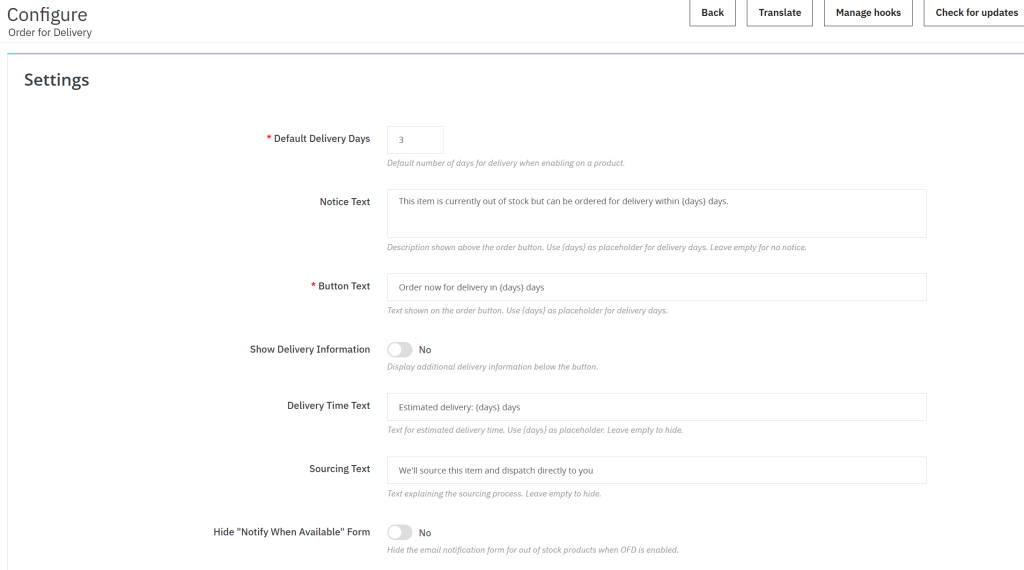
The module configuration page offers:
| Setting | Description | Default |
|---|---|---|
| Default Delivery Days | Pre-filled value when enabling OFD on a product | 3 |
| Button Text | Text shown to customers (supports {days} placeholder) | “Order now for delivery in {days} days” |
| Show Delivery Information | Display additional info below the button | Yes |
Per-Product Setup
- Edit any product
- Go to the Modules tab
- Find “Order for Delivery Settings”
- Enable and configure as needed
- Save the product
Customisation
Styling
Edit /views/css/front.css to match your theme. Key classes:
.ofd-wrapper– Main container.ofd-banner– The notification banner.ofd-add-to-cart– The button.ofd-info– Additional information block
Email Templates
Modify the templates in /mails/en/:
ofd_shipped.html– HTML versionofd_shipped.txt– Plain text version
Order Status
The module creates an “Order for Delivery – Pending” status. Customise the colour or rename it in Orders > Statuses.
Lessons Learned
Building this module reinforced several things I’ve learned about PrestaShop development:
Hook timing matters – Understanding when hooks fire relative to core operations is crucial. The stock setting issue taught me that sometimes you need creative solutions like shutdown functions.
Embedded CSS is more reliable – Whilst separate CSS files are cleaner, embedding styles in templates guarantees they’ll load regardless of theme caching or concatenation settings.
Test with combinations – Products with variants add significant complexity. The JavaScript needs to handle dynamic updates as customers change their selection.
Mobile-first matters – A surprising number of e-commerce purchases happen on mobile. Every interface needs to work well on small screens.
Keep it lightweight – I’ve seen too many PrestaShop modules that try to do everything and end up bloated. OFD does one thing well.
What’s Next
There are a few enhancements I’m considering for future versions:
- Supplier integration – Automatic stock checks and ordering from suppliers
- Estimated delivery dates – Calculate actual delivery dates rather than just dispatch times
- Customer notifications – Email customers when their item moves to “Stock Received”
- Reporting – Dashboard showing OFD sales trends and average fulfilment times
Conclusion
Order for Delivery fills a gap in PrestaShop’s out-of-the-box functionality. Rather than losing sales when products go out of stock, you can capture that demand whilst being completely transparent with customers about delivery expectations.
The module is lightweight, follows PrestaShop conventions, and provides a clean interface for both customers and administrators. It’s been running in production for several months now and has proven reliable across PrestaShop 8.2 and 8.3.
If you’re interested in using Order for Delivery or have questions about the implementation, feel free to get in touch via my contact page.